MP3 Bitrate Explained: 64k, 128k, 192k, and How to Make Audio Files Smaller
If you just need the short version: use 64k or 96k mono for many voice recordings, 128k for ordinary MP3 sharing, and 192k for music when quality still matters. Then listen before you delete anything.
Quick answer
The best MP3 setting is not the largest or the smallest. It is the one that still sounds acceptable for the job. A meeting recording can often survive 64k mono. A podcast draft usually deserves 96k or 128k. Music gets fragile faster, so start at 192k before pushing lower.
Spoken voice
Often enough for meetings, notes, lectures, and voice memos.
General MP3
A reasonable baseline when you just need a smaller shareable file.
Music
Safer starting point when the sound matters and you still need an MP3.
Originals
A successful MP3 export is not a reason to delete your source file.
Practical MP3 bitrate starting points
| Use case | Try first | Safer setting | Judgment call |
|---|---|---|---|
| Voice memo or meeting notes | 64k mono | 96k mono | Good for speech when you care more about upload size than polished sound. |
| Podcast draft or spoken lesson | 96k mono | 128k mono or stereo | Use the higher end if voices sound dull, smeared, or hard to listen to. |
| General MP3 sharing | 128k stereo | 160k stereo | A practical baseline for messages, uploads, and ordinary listening. |
| Music you care about | 192k stereo | 256k stereo | Start here before going lower. Music exposes compression artifacts faster than speech. |
| Archive, master, or future editing | Keep original | Keep FLAC/WAV | Export MP3 copies for sharing. Do not replace the master with a lossy file. |
Audio compression gets confusing because the words sound more exact than the results feel. You pick 64k, 128k, or 192k, but what you actually hear depends on the source, the encoder, the number of channels, and whether the file was already compressed before you touched it.
This is where people get tripped up. A voice memo that is too large to upload may shrink beautifully at 64k mono. A music file at the same setting may turn swishy and thin. A podcast draft might be intelligible at 64k but unpleasant after five minutes. None of that means the tool failed. That is how lossy compression works.
What bitrate means in plain English
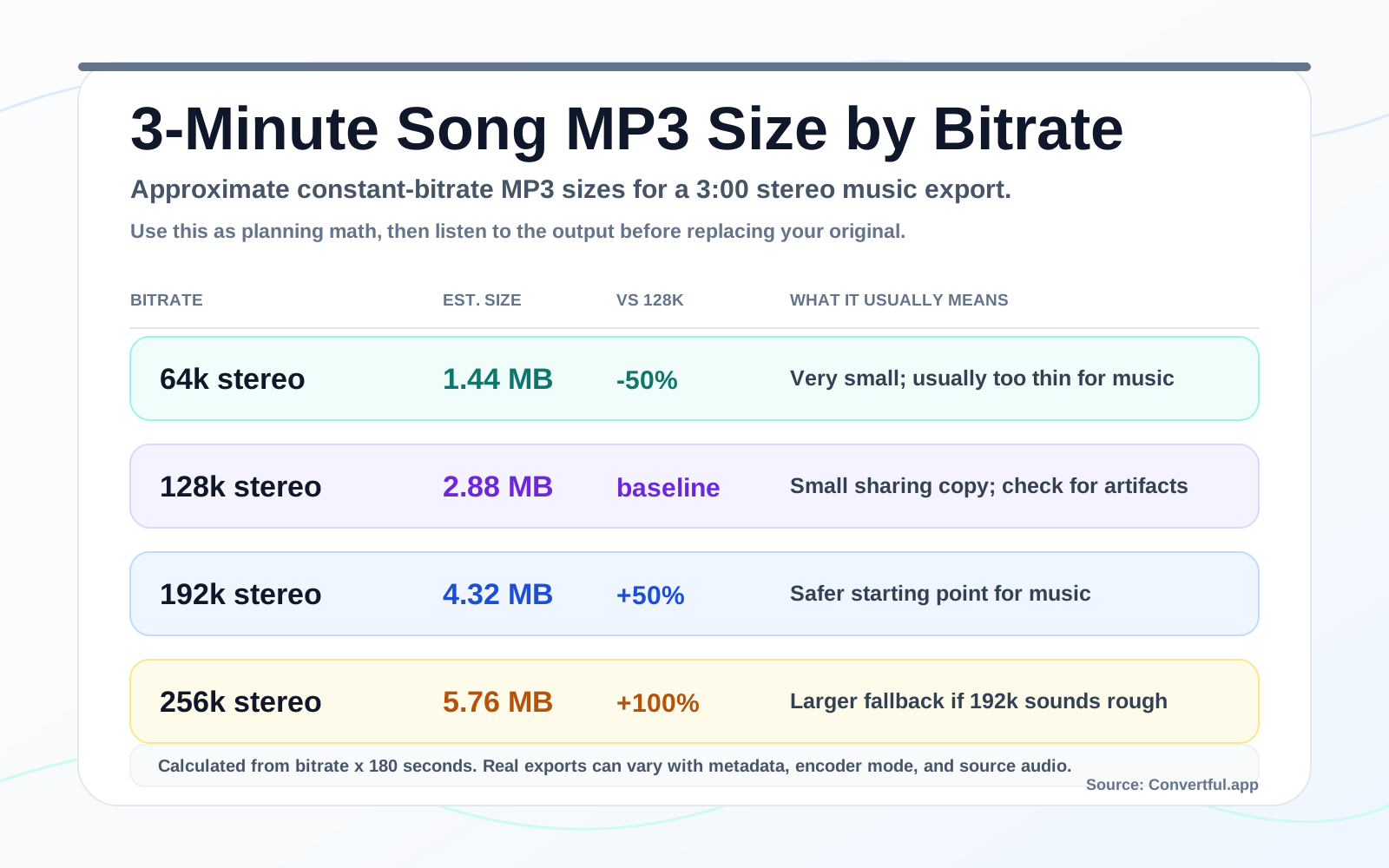
Bitrate is the amount of data the audio file spends per second. A 128 kbps MP3 uses about 128 kilobits every second. Lower the bitrate and the file usually gets smaller. Raise it and the encoder has more room to preserve detail.
The rough file-size math is simple enough to be useful:
Bitrate x duration decides the size
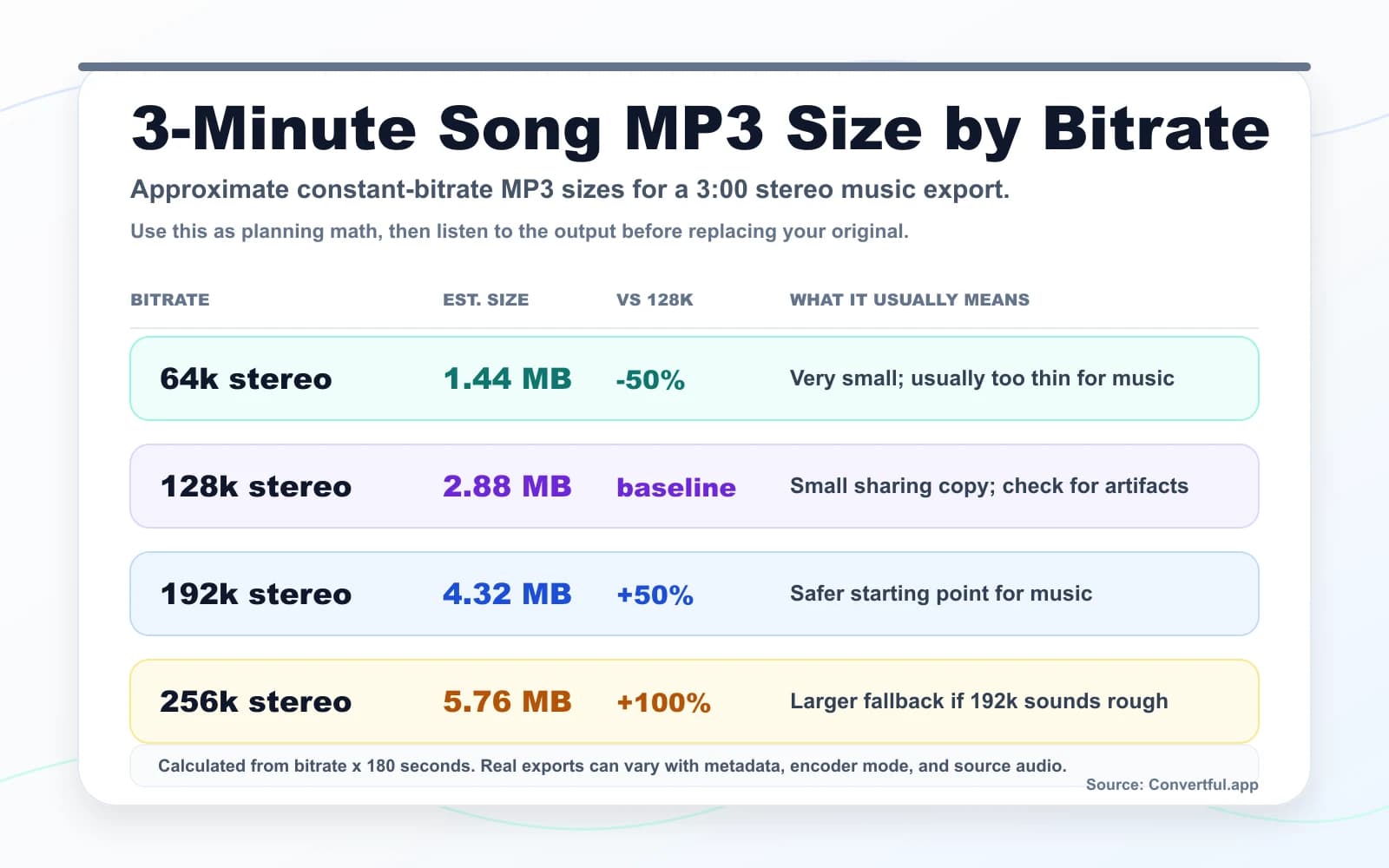
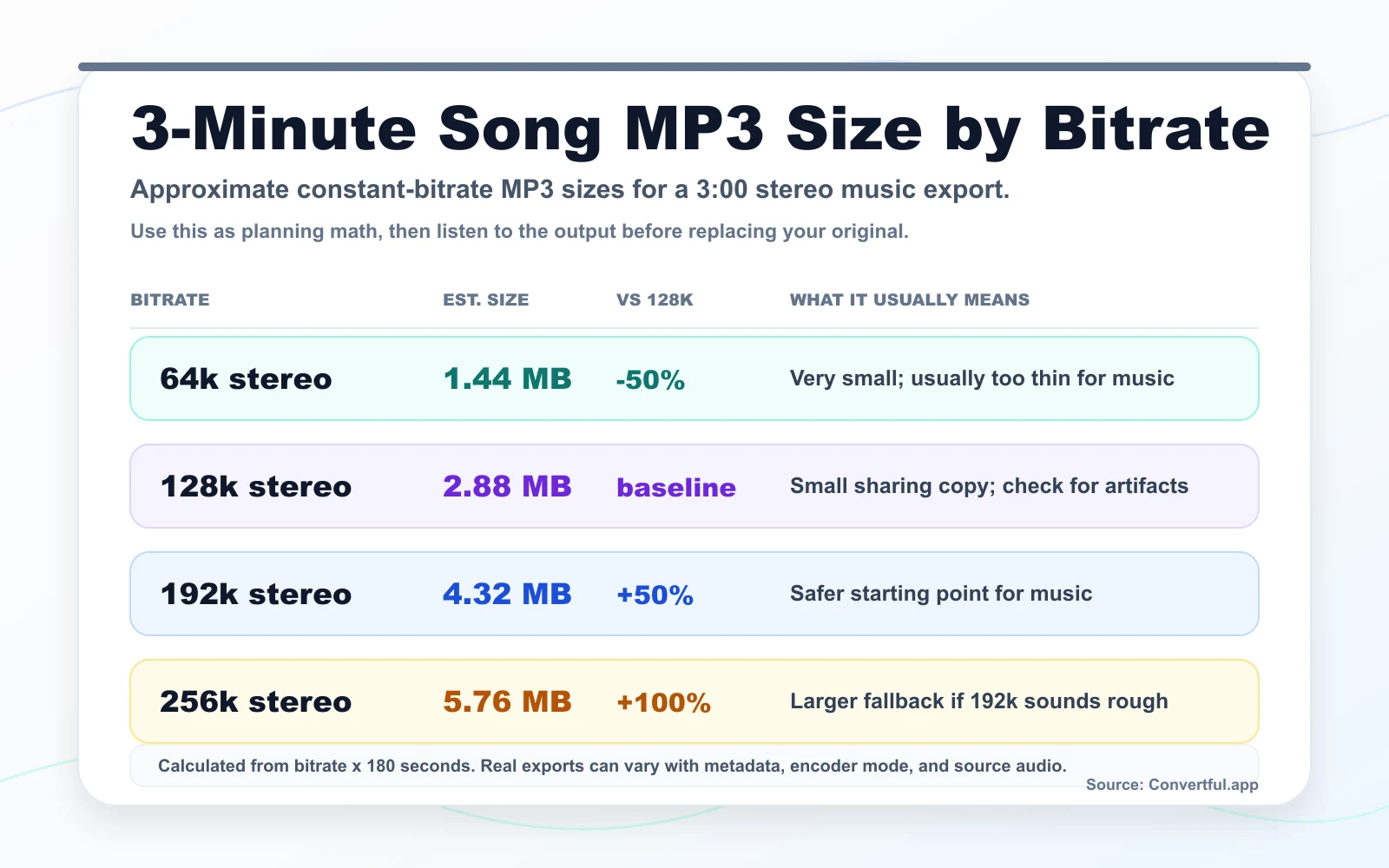
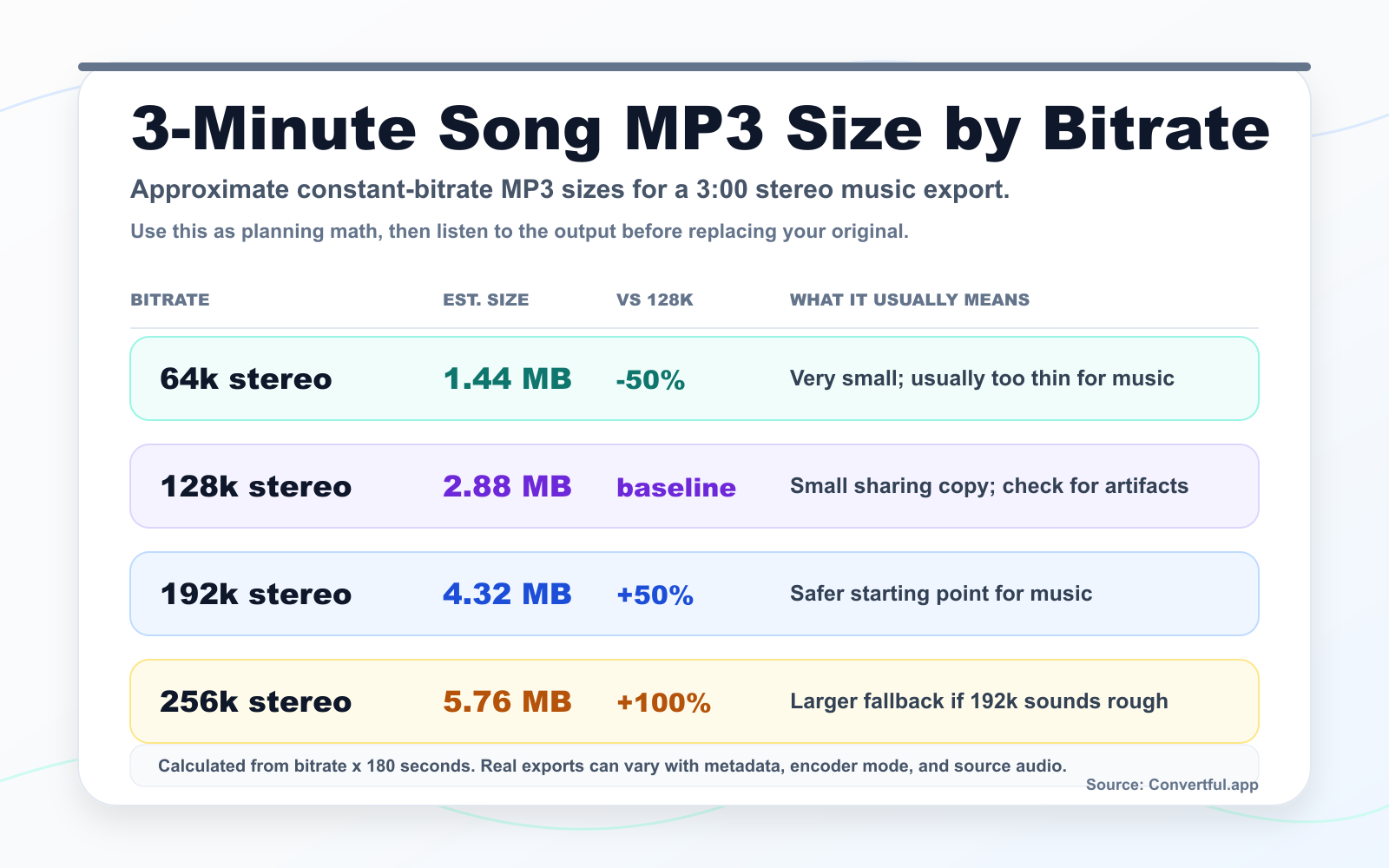
A 128 kbps MP3 is roughly 0.96 MB per minute: 128 kilobits per second x 60 seconds, divided by 8 to convert bits to bytes. Real files can vary a little because of headers, metadata, and encoder behavior, but the estimate is close enough for planning.
Approximate MP3 file sizes
| Bitrate | 1 minute | 10 minutes | 1 hour |
|---|---|---|---|
| 64 kbps | 0.48 MB | 4.8 MB | 28.8 MB |
| 96 kbps | 0.72 MB | 7.2 MB | 43.2 MB |
| 128 kbps | 0.96 MB | 9.6 MB | 57.6 MB |
| 192 kbps | 1.44 MB | 14.4 MB | 86.4 MB |
| 256 kbps | 1.92 MB | 19.2 MB | 115.2 MB |
The key phrase is “roughly.” Some MP3 encoders use variable bitrate, and different source material compresses differently. Silence, steady speech, dense music, applause, room noise, and cymbals do not ask the encoder for the same amount of work.
Bitrate is not sample rate
Sample rate describes how often the original waveform is sampled each second. Bitrate describes how much data the compressed file uses each second. If your goal is a smaller MP3, bitrate is usually the main size knob; changing from 48 kHz to 44.1 kHz is not the clean shortcut people hope it is.
Mono can be the right choice for speech
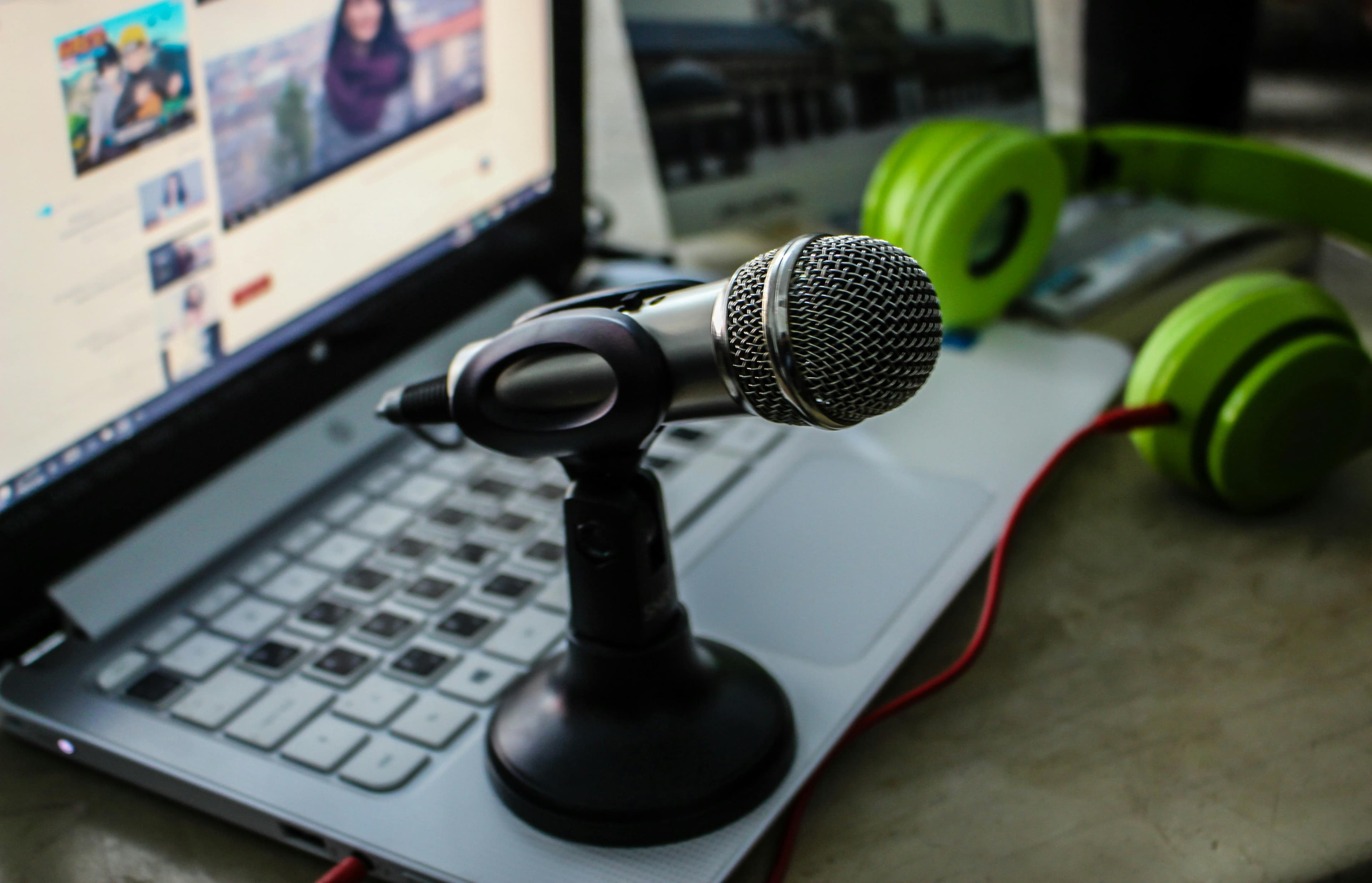
Stereo has two channels. Mono has one. For music, stereo often matters because the recording uses left-right space. For a meeting recorder sitting on a table, mono can be perfectly sensible.
If this is a spoken meeting recording, try 64k mono first. If it sounds too rough, move to 96k mono. For a podcast or narration that other people will spend real time listening to, 96k mono or 128k mono is a more comfortable starting point.
Do not convert music to mono just to chase a smaller number unless you know the source is mono or the stereo image does not matter. The size savings may be real, but the result can feel flat.
How low is too low?
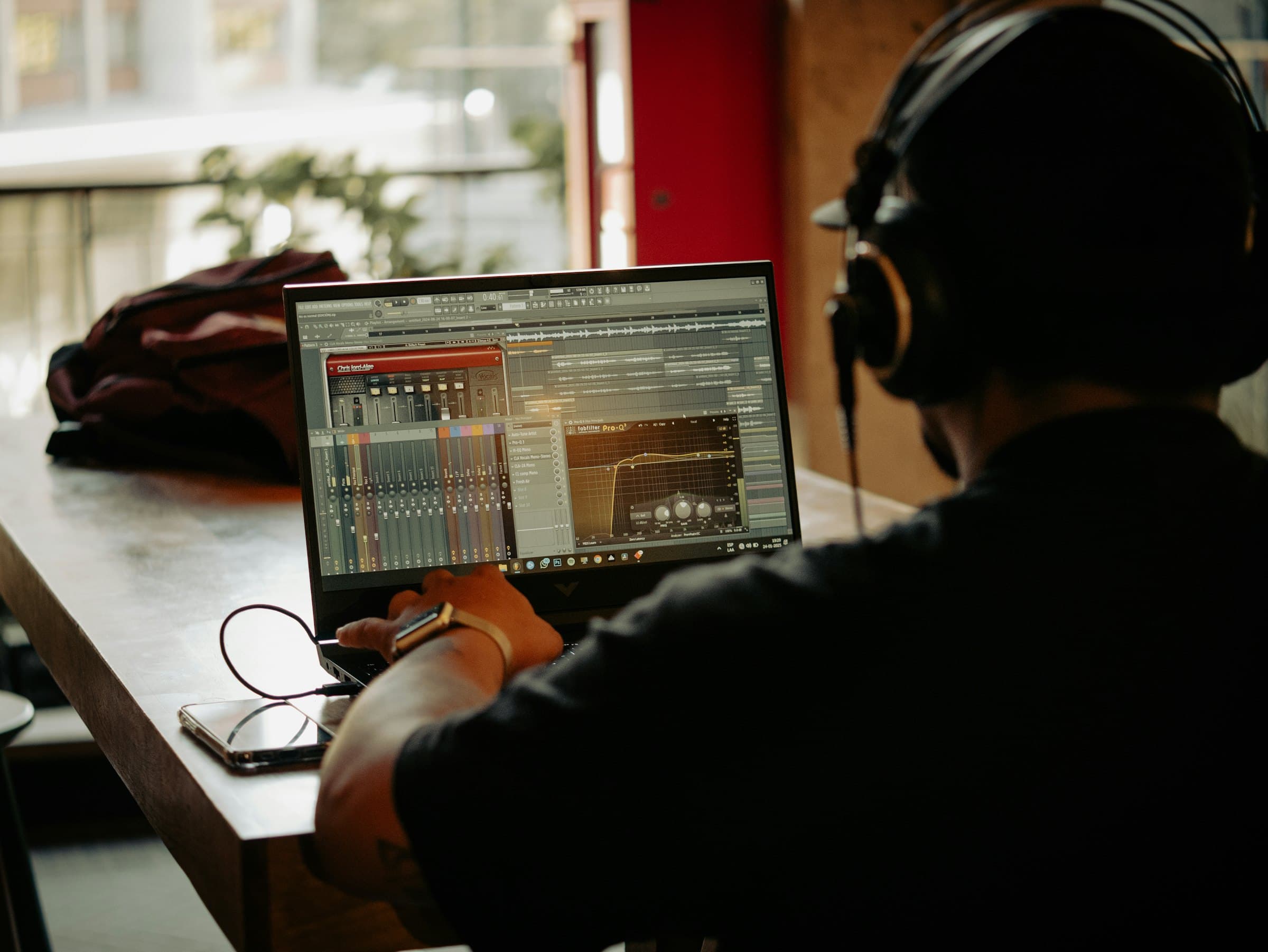
The honest answer is: too low is when the output no longer works for the job. Speech can tolerate a surprising amount of compression because voices occupy a narrower range than music. Music is less forgiving because cymbals, reverb, stereo width, bass texture, and layered instruments expose the shortcuts.
If the output sounds watery, metallic, hollow, smeared, or like the high end is splashing around, the bitrate is too low. Raise it one step and try again. That tiny listening check matters more than memorizing one perfect number.
Compression symptoms and fixes
| What you hear | Likely cause | What to try |
|---|---|---|
| Watery or swishy cymbals | Music bitrate is too low | Try 192k or 256k stereo instead of forcing 128k. |
| Voice sounds metallic | Speech was pushed too hard | Move from 64k mono to 96k mono, or 128k for a public podcast. |
| Stereo image feels thin | Mono was used for music | Use stereo for music unless the source is genuinely mono. |
| File did not shrink | Source was already compressed | Lower the target bitrate, trim the file, or keep the existing file if it already sounds fine. |
Why your compressed file did not shrink much
Sometimes you compress an audio file and the output is barely smaller. Sometimes it is larger. That is not automatically a bug.
The most common reason is that the source was already compressed. An MP3, AAC, OGG, or Opus file has already had audio information discarded. Re-encoding it to another MP3 does not uncover a secret stash of easy savings. If your original is a 96 kbps M4A and you export a 128 kbps MP3, the new file can grow.
There are other boring reasons too: very short files have overhead, metadata can take space, and MP3 may be less efficient than the source codec for the same perceived quality. The useful question is not “why did compression fail?” It is “does this output sound good enough, and is the size actually better for my destination?”
Do not delete the original just because the MP3 opened
Keep the original if the recording matters. This is especially true for interviews, podcast masters, music projects, client recordings, and anything you may need to edit later. MP3 is a delivery copy, not a clean master.
FLAC, WAV, and MP3 are different jobs
WAV is usually uncompressed audio. FLAC is lossless compression. MP3 is lossy compression. That difference matters.
If you have a FLAC master, keep it. Convert FLAC to MP3 when you need a smaller sharing file or better compatibility, but do not replace the FLAC with the MP3. The MP3 is smaller because it does not preserve every bit of audio detail.
The same idea applies to WAV to MP3. Export an MP3 when you need an upload-friendly file. Keep the WAV if it is the original recording or the file you plan to edit.
A practical decision guide
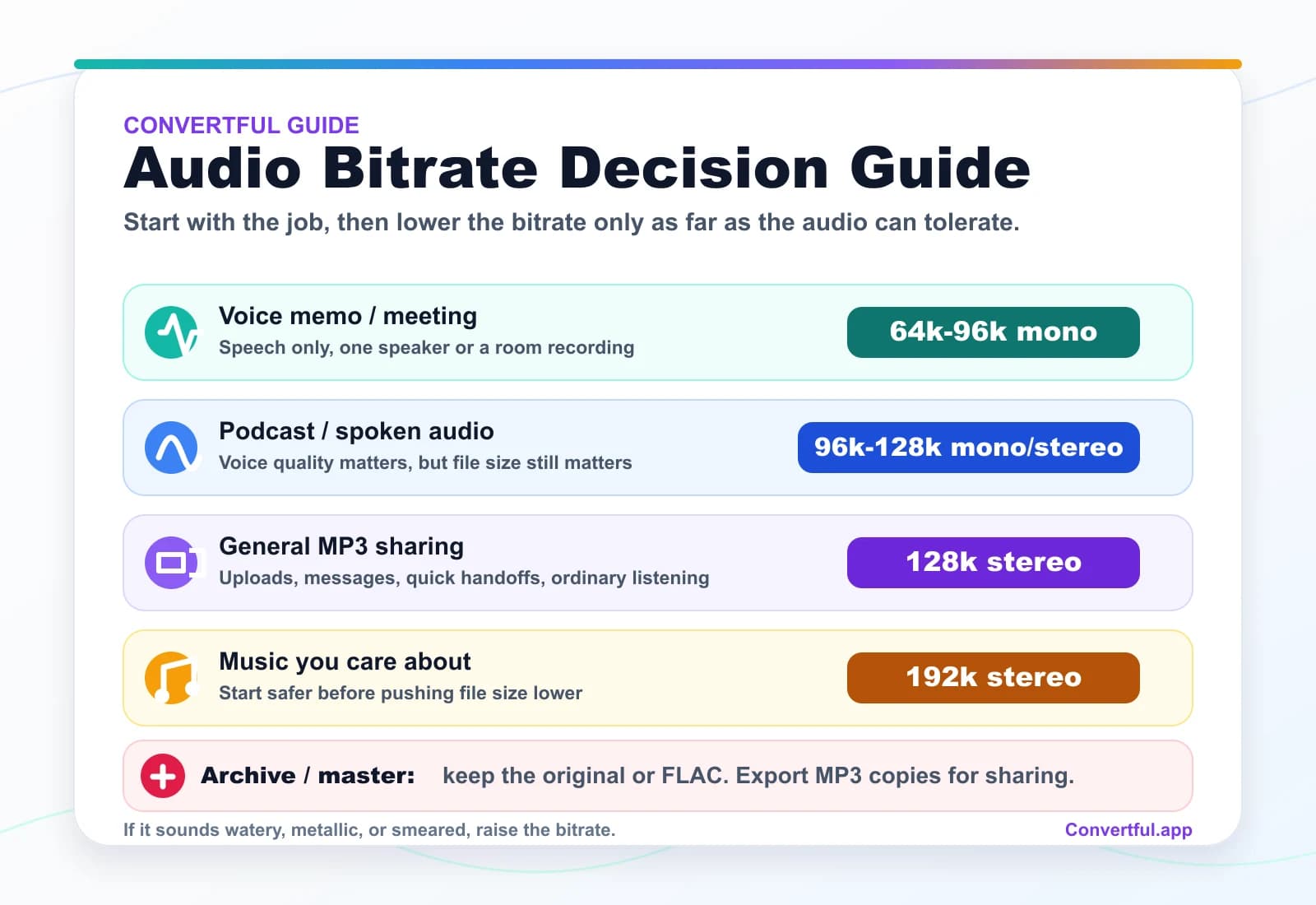
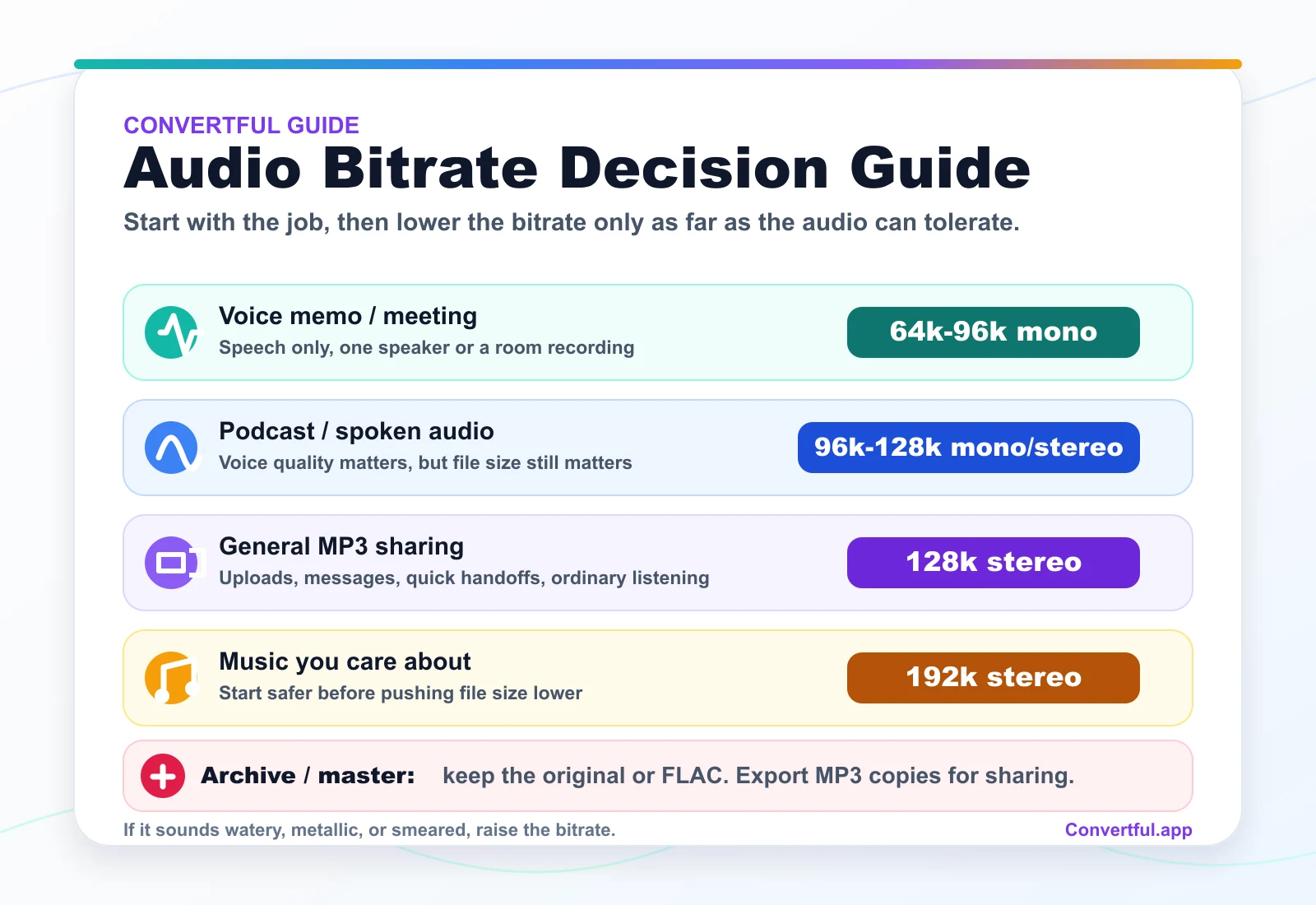
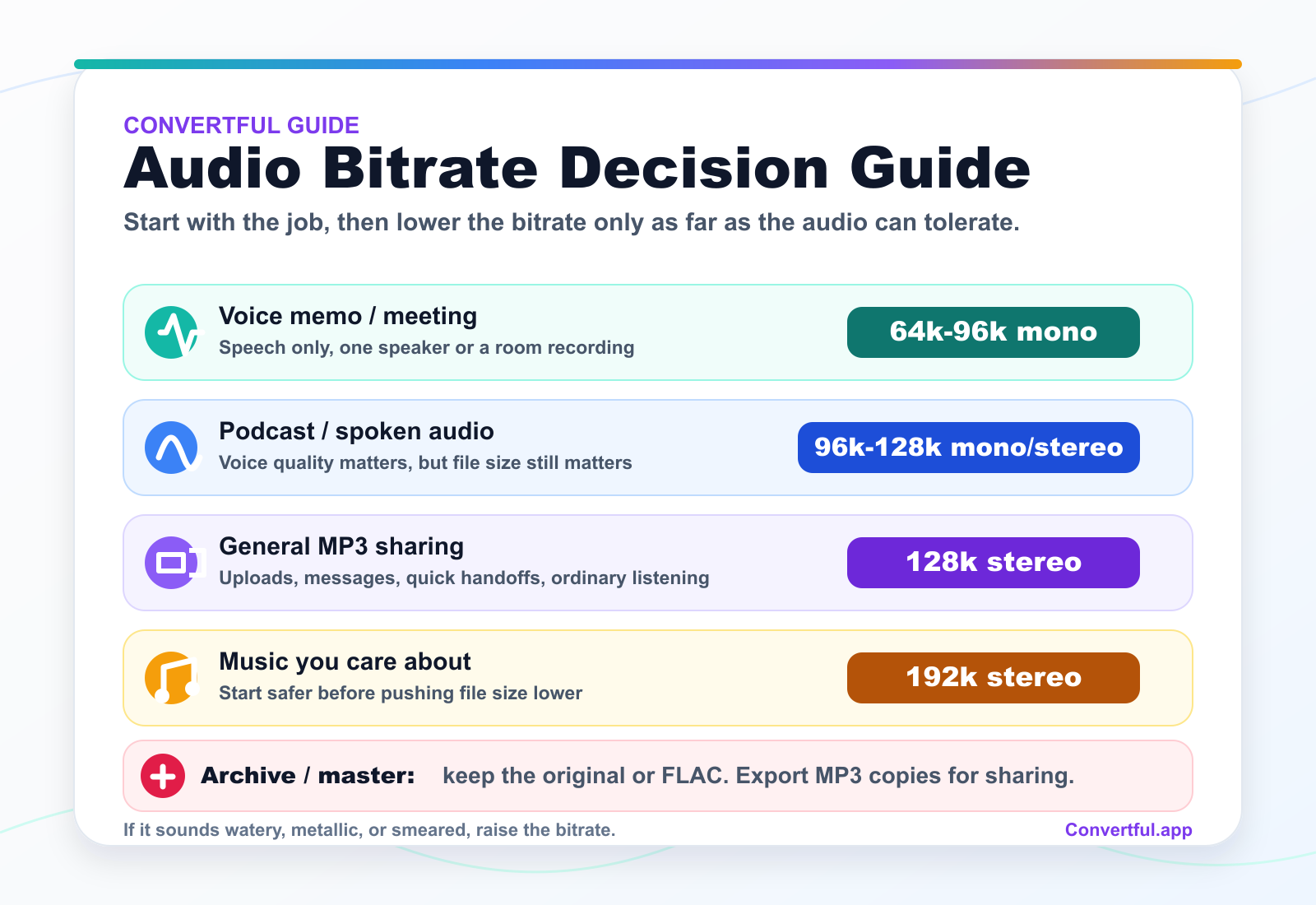
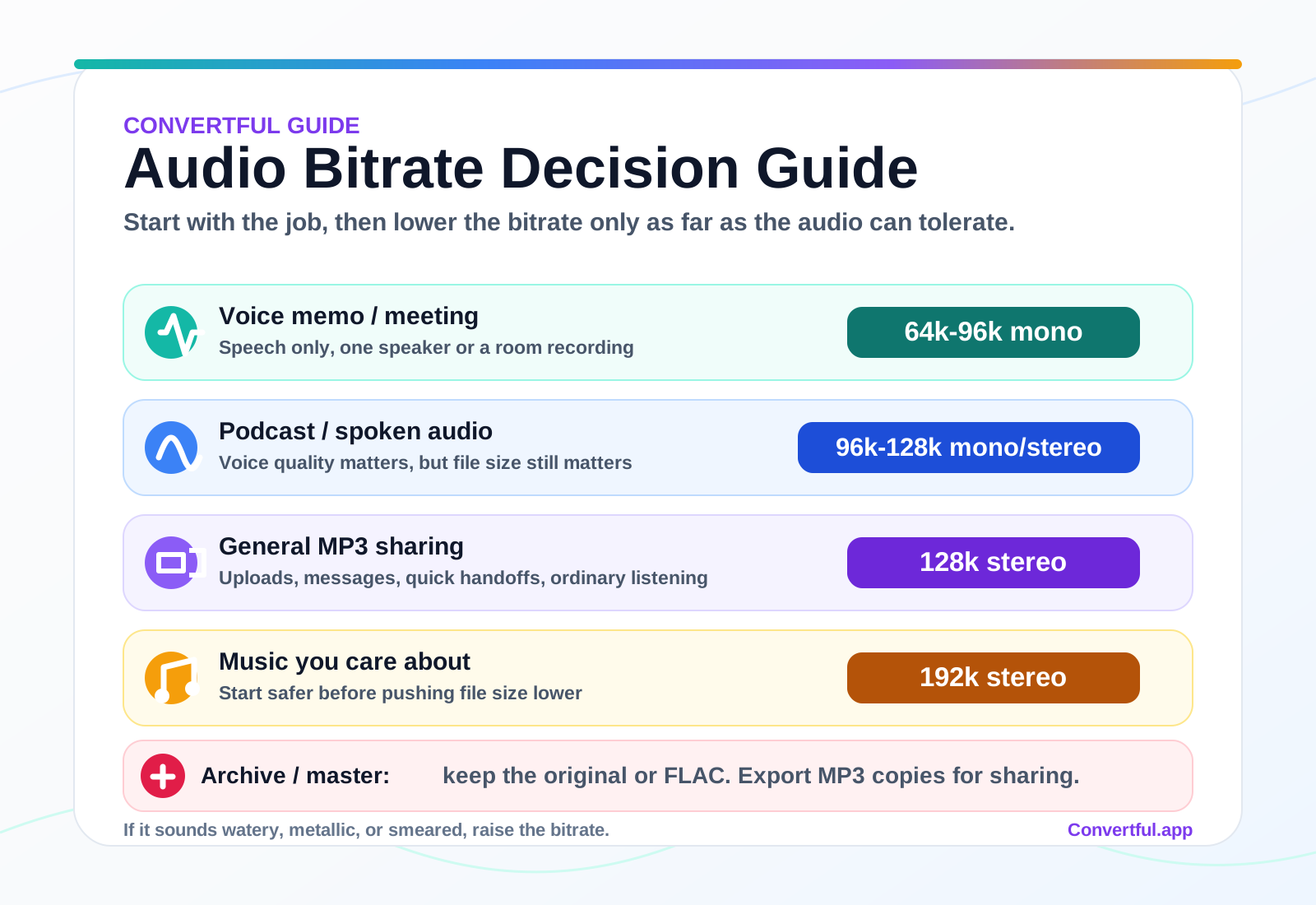
If you are trying to choose quickly, start with the type of audio instead of the number. The same advice in the table above is mapped out here as a reusable reference graphic:
How to make an audio file smaller without guessing
If the file is too large for an upload form, email, learning platform, or messaging app, keep the original, trim dead space if there is any, choose mono for speech when stereo does not matter, then export one test MP3 and listen to the worst-sounding section. That order saves more time than making ten blind exports.
Convertful can help with the mechanical parts: Audio Compressor for smaller MP3 exports, Audio Trimmer for cutting unused sections, M4A to MP3 for phone recordings, OGG to MP3 when an app refuses OGG or Opus, and Extract Audio when the sound is trapped inside a video file.
Convertful runs audio compression locally
Convertful's Audio Compressor uses bundled FFmpeg WebAssembly assets in your browser. Your audio does not need to be uploaded to Convertful just to compress it. Very large, unusual, corrupt, or protected files can still fail in browser memory, so keep your original until you have checked the export.
One last check before you send it
Listen to the loudest section, the quietest section, and the section with the most detail. For a meeting, that might be the person farthest from the microphone. For a podcast, it might be the guest with the roughest mic. For music, it is often cymbals, reverb tails, busy choruses, or layered vocals.
If those parts survive, the setting is probably good enough. If they fall apart, raise the bitrate. The best setting is the one that does the job without pretending compression has no trade-offs.
How this guide was checked
The technical explanations here were cross-checked against MDN guidance on digital audio concepts and web audio codecs, plus FFmpeg codec documentation for encoder terminology. The practical recommendations are conservative starting points, not universal laws. Source material, listening environment, and the destination all matter.
Sources and further reading
Useful audio tools for this workflow
Compress, convert, trim, merge, or extract audio in your browser. Start with the smallest change that solves the file-size problem.
MP3 bitrate FAQ
Is 128 kbps enough for MP3?
For general sharing, yes, 128 kbps is a practical baseline. It is usually fine for casual listening, voice clips, and quick uploads. For music you care about, start at 192 kbps before going lower.
Is 64 kbps good enough for voice?
Often, yes, especially for a spoken meeting recording, lecture, or voice memo saved in mono. If the voice sounds metallic, hard to understand, or tiring to hear, try 96 kbps mono instead.
Does lowering bitrate reduce audio quality?
Yes. MP3 is lossy compression, so lowering the bitrate asks the encoder to throw away more audio information. The trick is choosing the lowest setting that still sounds acceptable for the job.
Why did my compressed audio file get bigger?
The source may already be efficiently compressed, or you may have exported at a higher bitrate than the original. Short files, metadata, and converting from formats like AAC or Opus to MP3 can also produce smaller savings than expected.
Should I choose mono or stereo?
Use mono for speech when stereo placement does not matter. Use stereo for music, ambience, interviews with meaningful left-right separation, or anything where the space of the recording matters.
Should I convert FLAC to MP3?
Convert FLAC to MP3 when you need a smaller sharing copy or compatibility with a device or upload form. Keep the FLAC as the master because MP3 does not preserve all of the original audio data.
Does Convertful upload my audio?
No. Convertful's Audio Compressor runs locally in your browser using bundled FFmpeg WebAssembly assets. Large or unusual files can still hit browser memory limits, so keep your original until you have checked the output.