HEIC vs JPG vs PNG vs WebP: Which Image Format Should You Use?
The short answer: use JPG when you need something that opens everywhere, PNG when you need transparency or crisp screenshots, WebP when you are optimizing for the web, and HEIC when you are staying inside an Apple-heavy photo workflow.
Quick format cheat sheet
| Format | Best for | Main strength | Watch out for |
|---|---|---|---|
| HEIC | iPhone photos and personal storage | Small files with strong photo quality | Weak compatibility outside Apple-first workflows |
| JPG | Sharing photos almost anywhere | Universal support and small photo files | Lossy compression and no transparency |
| PNG | Screenshots, graphics, transparency | Lossless quality and alpha transparency | Large files for normal photographs |
| WebP | Websites and modern web delivery | Efficient compression plus transparency support | Older apps and workflows may reject it |
Image formats are annoying because they all sound interchangeable until one of them breaks your day. An iPhone photo will not upload to a form. A transparent logo turns into a white box. A screenshot is much larger than expected. A WebP file looks fine in your browser but will not open in the app you actually need to use.
The fix is usually simple once you know what each format is good at. HEIC, JPG, PNG, and WebP are not ranked from best to worst. They are built for different jobs.
First, two naming clarifications
JPG and JPEG are the same image format. The shorter .jpg extension exists mostly because older systems preferred three-letter file extensions. If a form asks for JPEG and your file ends in .jpg, that is normally fine.
HEIC and HEIF are related but not quite identical. HEIF is the container format. HEIC is the file extension many iPhones use when a HEIF image is encoded with HEVC compression. In everyday use, people often say “HEIC photo” for the iPhone files they are trying to open, upload, or convert.
Use JPG when compatibility matters most
JPG is still the safest default for ordinary photos. If you are emailing a picture, uploading a resume headshot, sending product photos to a marketplace, attaching images to a support ticket, or handing files to someone who is not technical, JPG is the format most likely to work without a second thought.
The trade-off is that JPG is lossy. Every time a JPG is saved at a lower quality setting, some image information is discarded. For photos, that is usually fine because the compression is designed for natural gradients, shadows, skin tones, and camera noise. For sharp UI screenshots, text, icons, diagrams, or logos, JPG can create fuzzy edges and blocky artifacts.
JPG also does not support transparency. If you convert a transparent PNG logo to JPG, the transparent areas have to become a real color, usually white. That is not a bug. It is a limitation of the format.
Use PNG for screenshots, graphics, and transparency
PNG is the format to reach for when exact pixels matter. It uses lossless compression, which means the decoded image can match the original pixels exactly. That makes it excellent for screenshots, interface mockups, diagrams, charts, icons, flat graphics, and images with hard edges.
PNG also supports alpha transparency, which is why it is so common for logos, stickers, cutouts, and UI assets. If you need an image to sit cleanly on top of a colored background, PNG is often the most predictable choice.
The downside is file size. PNG is usually inefficient for camera photos. A normal photo saved as PNG can be several times larger than the same image saved as JPG or WebP, with no visible benefit. If you have a big PNG that is really just a photograph, converting it to JPG is often the quickest way to make it smaller.
Use WebP for websites and modern delivery
WebP was designed for the web, and that is still where it makes the most sense. It can handle lossy compression like JPG, lossless compression like PNG, transparency, and animation. For websites, that flexibility is useful because a smaller image file can mean faster pages and less bandwidth.
If you are building a landing page, publishing blog images, exporting thumbnails, or preparing product images for a modern website, WebP is often a strong target format. It can give you much of the visual quality of JPG or PNG at a smaller size.
Where WebP gets frustrating is outside the browser. Modern browsers support it, but some older desktop apps, upload forms, content management systems, print workflows, and email clients may still reject it or treat it awkwardly. If you are sending a file to another person, a government form, a school portal, a print shop, or an app that asks specifically for JPG or PNG, do not force WebP just because it is newer.
AVIF is worth knowing about too, especially for aggressive website optimization. It can be excellent, but it is not the format most people are fighting with when an upload form rejects an iPhone photo or a saved web image. If you control the website and can provide fallbacks, test AVIF. If you are handing files to other people or random software, JPG, PNG, and sometimes WebP are still the safer practical choices.
Use HEIC when you are staying in the Apple photo world

HEIC is the format many iPhones use for photos. The appeal is simple: it can keep photos looking good while using less storage than a comparable JPG. That is a big deal when your camera roll has years of photos and videos.
The catch is compatibility. HEIC is great when you are taking photos on an iPhone and viewing them on Apple devices. It becomes less great when you move those files into older Windows apps, web forms, design tools, email workflows, or services that only accept JPG or PNG.
If a website rejects your iPhone photo, the practical answer is usually not to argue with the upload form. Convert the HEIC to JPG for general sharing, or to PNG if you need lossless output for a screenshot-like image. For most actual photos, JPG is the better destination.
A real-world example: same image, three formats
Good photo quality, broad compatibility
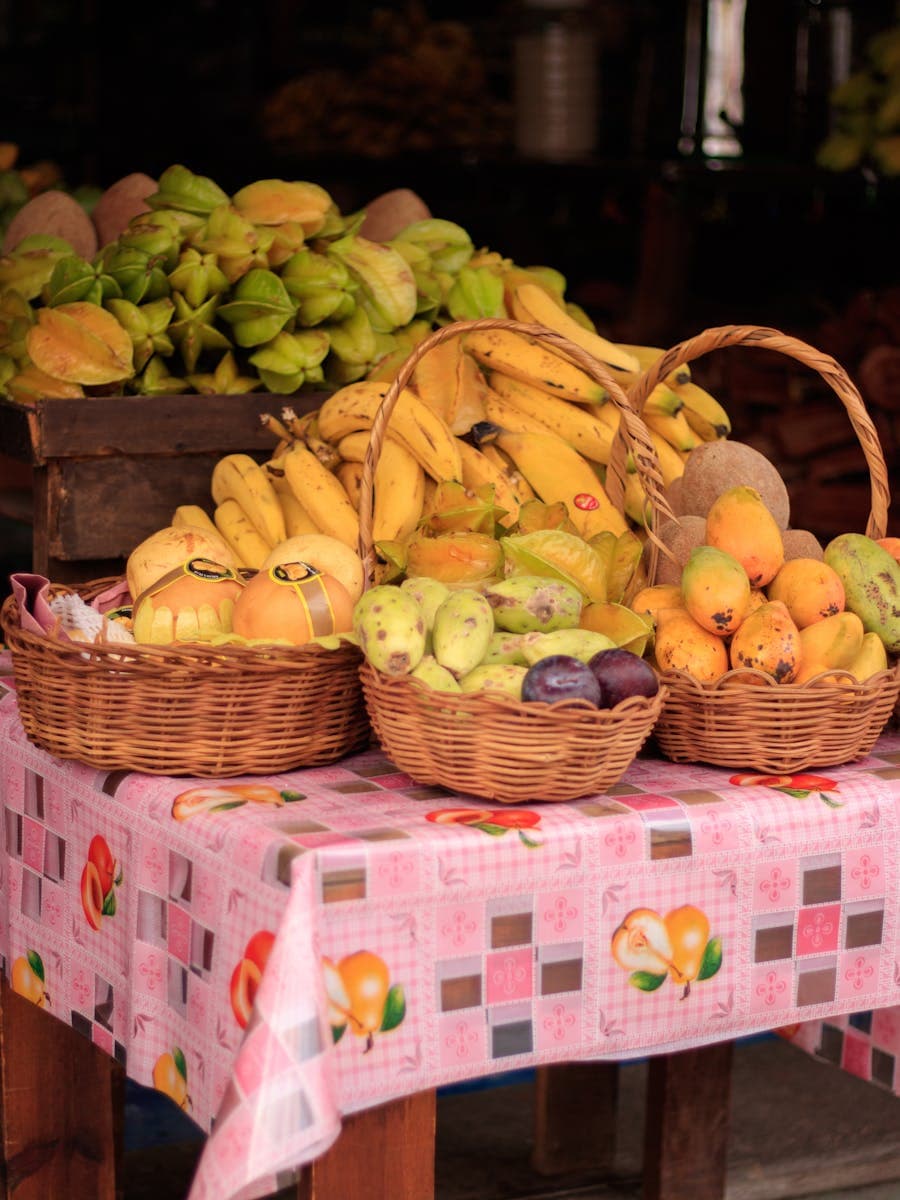
To make the tradeoff less abstract, we took the same 900 x 1200 stock photo and exported it as JPG, PNG, and WebP. The image is a normal photograph: color gradients, texture, shadows, and plenty of detail.
Good photo quality, broad compatibility
Lossless, but huge for this kind of photo
Smallest in this test; best for web delivery
This is one example, not a universal benchmark. But it shows the pattern: PNG is not automatically “higher quality” for photos, and WebP is not automatically the right handoff format just because it can be smaller.
A practical decision tree
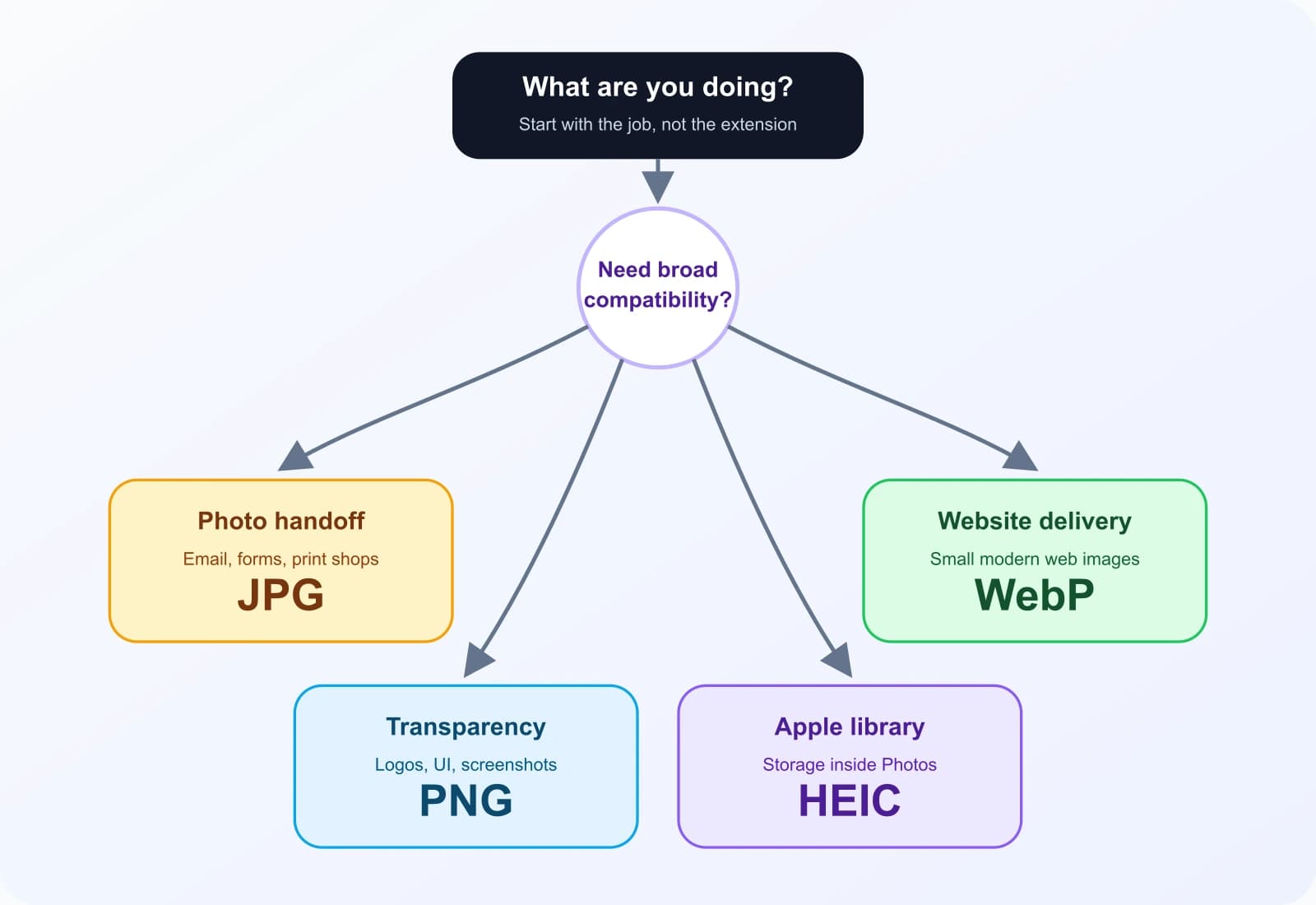
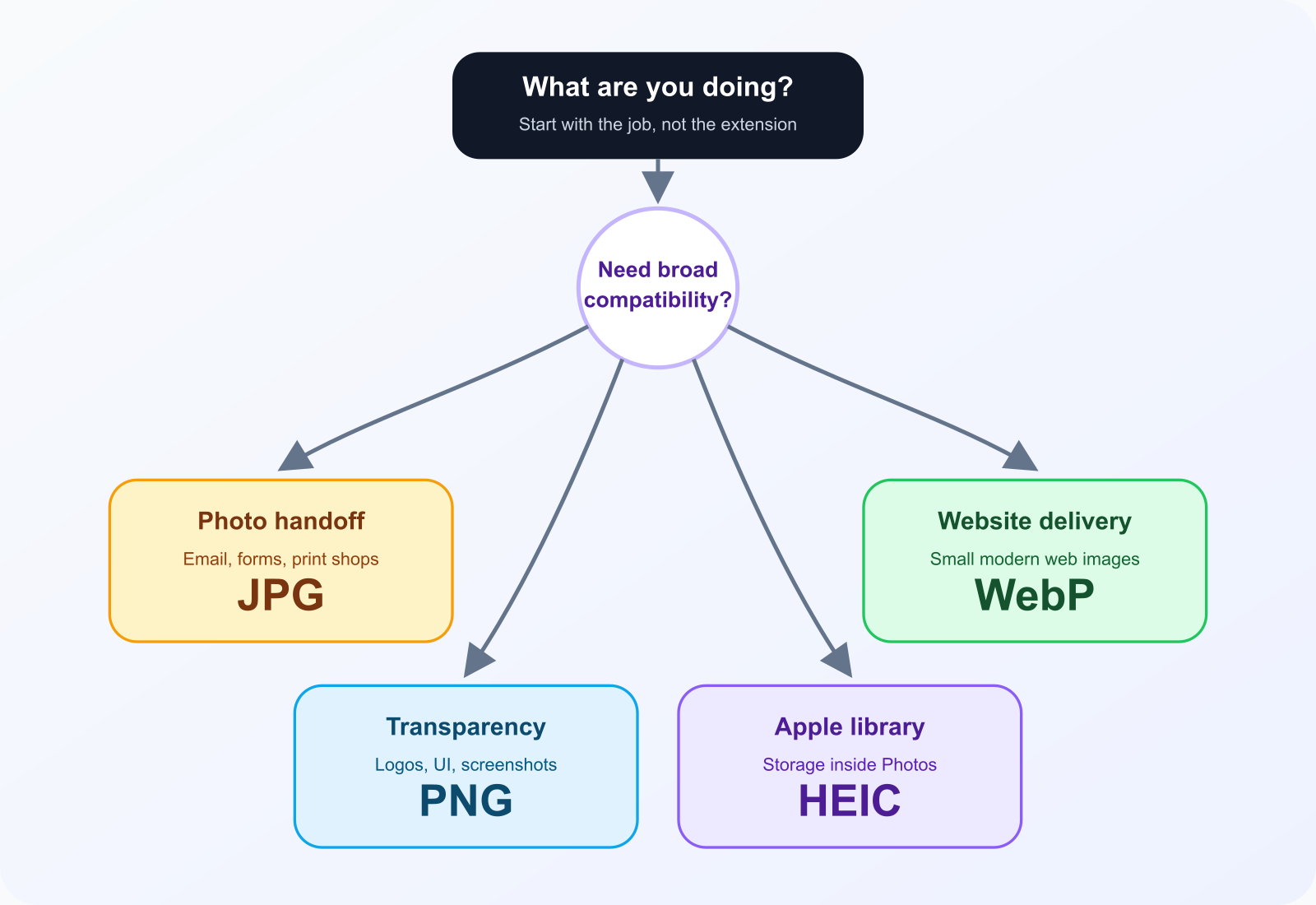
If you are choosing a format quickly, start with the job instead of the file extension:
- Uploading a photo somewhere? Use JPG unless the site specifically asks for something else.
- Saving a screenshot or UI graphic? Use PNG for crisp edges and readable text.
- Putting images on a website? Use WebP for delivery, with JPG or PNG fallbacks if your audience or platform needs them.
- Sending iPhone photos to non-Apple users? Convert HEIC to JPG.
- Need transparent backgrounds? Use PNG or WebP. Do not use JPG.
- Need the smallest reasonable file? Try WebP for web use, JPG for broad compatibility, and compression settings before changing the format blindly.
Common conversions and what changes
Converting formats is not just renaming a file. The pixels may be re-encoded, metadata may be dropped, transparency may be flattened, and the output can get larger even when the new format is more compatible. Here are the conversions people usually need:
- HEIC to JPG: best for iPhone photos that need to work in upload forms, Windows apps, or email. The output is more compatible, but it is no longer the same original HEIC file.
- HEIC to PNG: useful if you need lossless output, but usually overkill for normal camera photos because PNG files can be much larger.
- PNG to JPG: good for making photographic PNGs smaller. Bad for logos or cutouts if you need transparency, because transparent areas must become a solid color.
- JPG to WebP: good for web delivery. Start from the best-quality source you have rather than repeatedly re-saving the same compressed JPG.
- WebP to JPG or PNG: good when an app refuses WebP. Choose JPG for photos and PNG when transparency or crisp graphics matter.
Format and quality are separate decisions. A JPG at quality 95 can look better and be larger than a WebP at a very aggressive setting. If the goal is a smaller file, test the quality slider before changing formats blindly.
How to switch formats in Convertful
If you already know the format you need, the workflow is simple:
- Pick the converter that matches your starting point: HEIC to JPG, PNG to JPG, JPG to WebP, or WebP to JPG.
- Drop in your image. For photo formats, Convertful reads the file in your browser and prepares a local preview where supported.
- Adjust the quality setting if the tool offers one. Higher quality usually means a larger file; lower quality means a smaller file and more compression artifacts.
- Run the conversion and download the result. If the first output is too large or too soft, rerun it with a different quality setting rather than guessing.
What we would use in common situations
Resume headshot upload
JPG, because the form is most likely to accept it.
Transparent logo
PNG for safest handoff, WebP if it is only for a modern website.
Blog or landing page image
WebP for delivery, with JPG fallback if the platform needs it.
Screenshot with text
PNG, because crisp edges matter more than tiny file size.
iPhone photo for a web form
Convert HEIC to JPG first.
Image for a print shop
Use whatever they request. If unsure, high-quality JPG is usually safer than WebP.
The mistake people make: converting everything to one format
It is tempting to pick one format and use it for everything. That is usually where quality and compatibility problems start. JPG is not a good logo format. PNG is not a good bulk photo format. WebP is not always accepted by non-web tools. HEIC is not ideal when the recipient is outside the Apple ecosystem.
The better habit is to keep your original when it matters, then export a copy for the destination. Keep HEIC originals in your photo library if you like the storage savings. Export JPG for sharing. Keep PNG source assets for logos and screenshots. Export WebP for the website. You do not need one universal format. You need the right output for the next step.
Where Convertful fits
Convertful is useful when the format you have is not the format your workflow accepts. You can convert HEIC photos to JPG, make PNGs smaller by converting them to JPG, turn JPGs into WebP for web delivery, or convert WebP back to JPG when an app refuses it.
The important part is that you should choose the format based on the destination. “Newest” is not always best. “Smallest” is not always best. The best format is the one that preserves what matters and opens where you need it to open.
Frequently asked questions
Is JPG the same as JPEG?
Yes. JPG and JPEG are the same image format. The .jpg extension became common because older systems preferred three-letter file extensions.
Should I convert HEIC photos to JPG or PNG?
For normal iPhone photos, convert HEIC to JPG. Choose PNG only when you need lossless output or you are working with screenshot-like graphics where crisp edges matter more than file size.
Does converting an image reduce quality?
It can. Converting to a lossy format like JPG or lossy WebP re-encodes the pixels, and aggressive quality settings can create visible artifacts. PNG is lossless, but it can produce much larger files.
Why is my PNG bigger than my JPG?
PNG is lossless and is best for screenshots, logos, and graphics. For camera photos, JPG and WebP usually compress far more efficiently because they are designed for photographic detail.
Is WebP always better than JPG?
No. WebP is often better for modern websites, but JPG is still safer when you need broad compatibility with upload forms, email workflows, print shops, and older apps.
Sources and further reading
For deeper technical details, see MDN's image file type and format guide and Google's WebP documentation, and Apple's HEIF/HEVC media guide.
Image tools mentioned in this guide
Convert, resize, and compress images free in your browser.